Published on: 2026-01-22
Downloading MetaTrader 4 for Mac addresses a practical workflow challenge rather than a straightforward software acquisition. As MT4 is primarily designed for Windows, macOS users must select a stable installation method that ensures reliable execution, responsive charting, and support for automation requirements.
EBC Financial Group streamlines this process by offering a dedicated MT4 download hub and a comprehensive Mac desktop installation guide, which integrates platform download, installation, and account login into a unified workflow.
The official MetaTrader installer for macOS is significant because it uses a guided wizard that automatically installs and configures Wine, then installs MT4 within that environment. This approach supports both Apple processors and recent macOS versions.
MT4 does not natively support macOS. The standard Mac desktop experience involves running MT4 within a Wine compatibility environment. This configuration affects file storage, template, and expert advisor backup procedures, as well as platform behavior after major macOS updates.
MetaTrader’s official macOS installation method explicitly states this design. The installer is a guided wizard that installs Wine, configures it, and then installs the terminal within it. It also states a minimum macOS requirement of Big Sur (11) and support for Apple processors from M1 onward.
For EBC users, the recommended approach is to utilize EBC’s official MT4 download entry points for the appropriate build and adhere to the Mac desktop installation sequence to minimize login and server selection errors.
EBC’s MT4 page is designed as the safest starting point because it consolidates platform access by device type and routes macOS users to an appropriate download path.
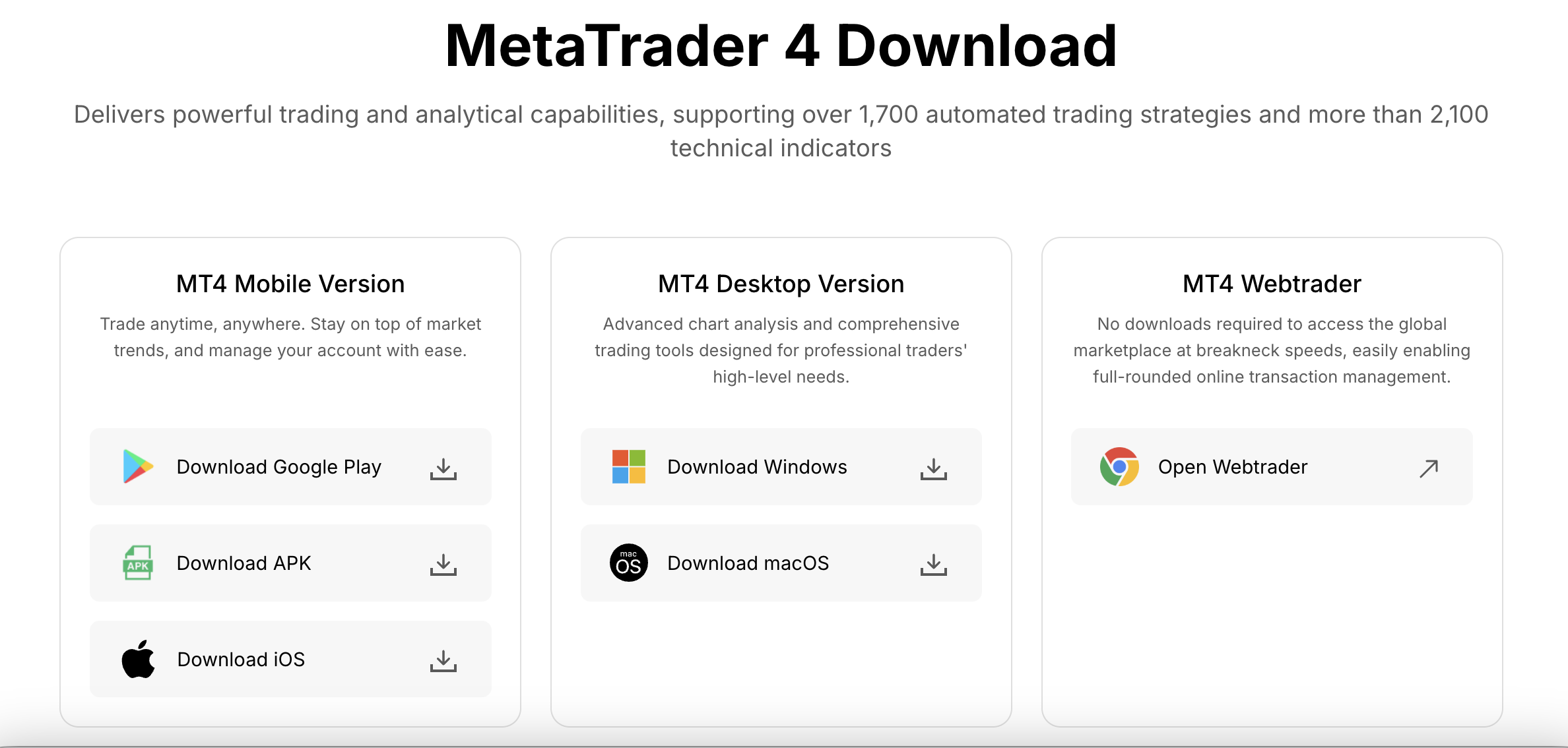
1) Use EBC’s official MT4 download pathway
On EBC’s MT4 page, the “Download for Desktop” section includes options for both macOS and Windows, as well as web and mobile platforms. This structure enables a “one account, multiple terminals” workflow, designating the Mac desktop as the primary terminal while web or mobile devices provide redundancy in the event of desktop access interruptions.T4 on macOS using the Mac desktop package.
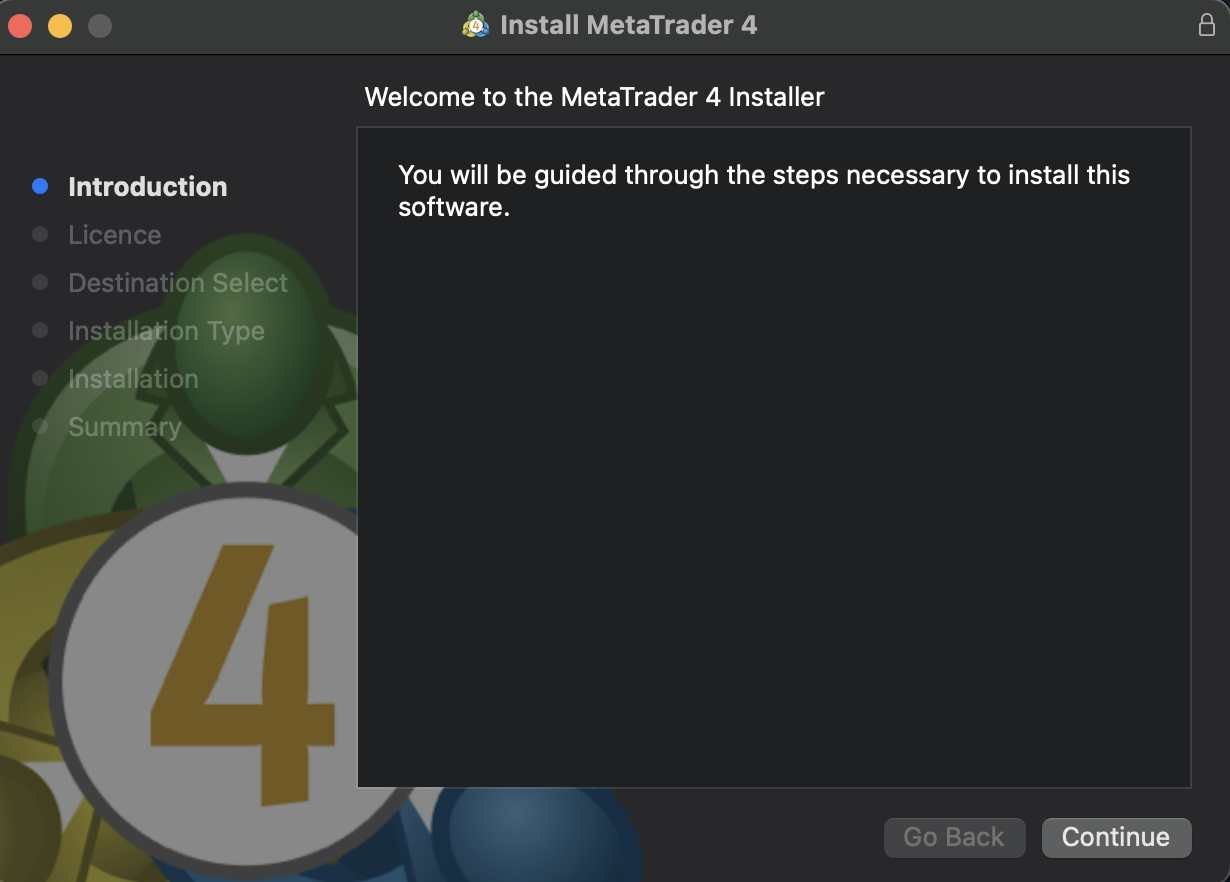
EBC’s Help Center Mac desktop guide describes a straightforward installer flow:
Locate the downloaded MetaTrader4.pkg.zip in the Downloads folder.
Unzip it to obtain MetaTrader 4.pkg.
Run the package and complete installation prompts and terms.
If you are unable to download the installer, you can use the EBC WebTrader.
3) Log in using EBC account credentials and the correct server
After installation, the operational hinge is logged in. EBC’s guide specifies launching MT4 from Applications, selecting “Log in to Trade Account,” entering the EBC account number and password, and selecting the correct EBC server.
Server selection is critical, as demo and live environments are different endpoints.
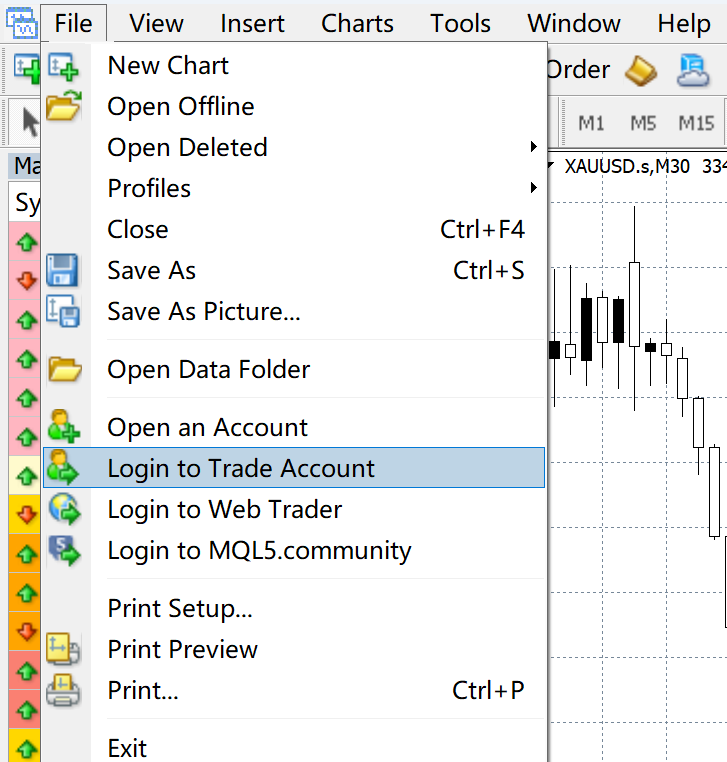 EBC Login And Server Selection On MT4 For Mac
Most MT4 “it does not connect” issues in a correctly installed terminal are caused by one of three factors: an incorrect server, incorrect credentials, or network restrictions.
EBC’s Mac desktop instructions explicitly list server naming for demo and live environments, including:
EBCFinancialGroup KY-Demo
EBCFinancialGroup KY-Live01
EBCFinancialGroup KY-Live02
In practice, the correct choice depends on whether the account is demo or live and which live server the account was provisioned on. Using the wrong server can appear to be a password issue even when credentials are correct.
The goal is not just to “get MT4 running.” The goal is to keep MT4 stable through the trading week, preserve templates and automation files, and maintain an alternative access route if macOS updates create friction.
| Route | What it is | Requirements | Best fit | Operational trade-off |
|---|---|---|---|---|
| EBC MT4 macOS download + official Mac installer (Wine-based) | Desktop MT4 on macOS via automated Wine environment | macOS Big Sur (11) or later | Primary Mac workflow with full desktop interface | Sensitive to major macOS changes; requires basic file hygiene for backups |
| MT4 Web | Browser-based MT4 access | Modern browser | Fast continuity access while traveling or during desktop interruptions | Limited depth for local customization compared with desktop |
| MT4 Mobile (iOS) | iPhone/iPad terminal | App Store install | Monitoring, order management, and redundancy | Not a desktop replacement for complex chart workflows |
*This table is intentionally operational. The “best” route is the one that aligns with how trading decisions are executed and monitored, not the one that installs fastest.
MetaTrader’s official Mac installation guidance sets macOS Big Sur (11) as the minimum and states support for Apple processors from M1 to the latest released versions. That matters for long-term maintainability because it reduces the need for virtualization workarounds on Apple Silicon when using the official installer path.
Once MT4 runs inside Wine, its working files live inside a directory that behaves like a Windows “drive” within macOS. MetaTrader documents the default data directory path as:
~/Library/Application Support/net.metaquotes.wine.metatrader4/drive_c/Program Files/MetaTrader 4
This location is the control point for templates, profiles, logs, downloaded indicators, and expert advisor files. Treating it as a backup target improves resilience after updates or reinstalls.
MeMetaTrader’s Mac installation guidance emphasizes monitoring Wine versions and recommends removing outdated environments when necessary. The key operational practice is to maintain a clean backup of essential platform files and to treat major macOS updates as change events that warrant a platform check before the trading week commences.
MT4 offers functionality beyond charting, including robust support for automated trading via expert advisors and custom indicators. The platform accommodates both trading robots and manual execution workflows.
EBC’s MT4 FAQ provides clear operational steps for using expert advisors: open the data folder within MT4, place the EA file in the Experts folder, restart the platform, and enable AutoTrading. On macOS, this process is identical, except the data folder is located within the Wine environment as previously described.
For Mac-based EA users, reliability comes from three controls:
Minimize OS-level interruptions during active sessions (sleep settings and automatic restarts).
Version control for EA files (keep a clean copy outside the MT4 data directory).
Redundant access via web or mobile in case the desktop terminal requires repair.
Security issues related to trading terminals are seldom technical in nature. They typically arise from distribution problems, such as counterfeit installers, credential phishing, or malicious software bundled with third-party download sources.
EBC’s MT4 user guide strongly recommends downloading MT4 exclusively from official broker channels and avoiding unfamiliar websites or third-party links purporting to be official maintenance pages. It further advises verifying that the installation window displays the broker’s full name to guard against counterfeit builds.
MT4’s platform-level security is also significant. MetaTrader specifies that data exchange between the client terminal and server is encrypted and supports RSA digital signatures. While this does not substitute for secure download practices, it demonstrates that security is integrated into the terminal-client relationship once the correct software is installed.
MetaTrader’s Mac installation guidance sets macOS Big Sur (11) as the minimum and states support across Apple processors from M1 onward. This is the baseline for a stable macOS desktop workflow using the official installer approach.
EBC’s Mac desktop guide instructs users to launch MT4, select “Log in to Trading Account,” enter the EBC account number and password, and select the correct EBC server. Choosing the wrong server is a common cause of connection failure.
EBC’s Mac desktop instructions list EBCFinancialGroup KY-Demo for demo access and EBCFinancialGroup KY-Live01 or KY-Live02 for live access. The correct live server depends on account provisioning.
MetaTrader documents the default macOS data directory inside the Wine environment under the user Library path, including the “drive_c” structure. This is the primary folder to back up for continuity.
Use EBC’s official MT4 download entry points and avoid third-party download mirrors. EBC’s MT4 user guide explicitly warns against unfamiliar websites and recommends verifying broker identification during installation as a counterfeit check.
For EBC clients, the most effective approach to downloading MetaTrader 4 for Mac involves a workflow that integrates official distribution channels, accurate server selection, and rigorous platform maintenance. EBC’s MT4 download hub and Mac desktop guide help minimize avoidable errors, while MetaTrader’s official macOS installer ensures a consistent installation process across current macOS versions and Apple Silicon.
Operationally, the optimal configuration combines a stable Mac desktop terminal with web or mobile alternatives. This arrangement ensures continuity during updates, maintains access while traveling, and preserves execution management even when desktop maintenance is required.
Given the risks associated with trading leveraged products, platform stability and secure installation practices should be regarded as essential controls.
Disclaimer: This material is for general information purposes only and is not intended as (and should not be considered to be) financial, investment, or other advice on which reliance should be placed. No opinion given in the material constitutes a recommendation by EBC or the author that any particular investment, security, transaction, or investment strategy is suitable for any specific person.