Published on: 2026-08-20
Updated on: 2026-08-20
An MT5 demo account is free, needs no deposit and asks for no identity documents. You can build it two ways, through a broker’s client portal or inside MetaTrader 5, and each route gives you different options.
MT5 hides broker servers behind a search box. On mobile, the list stays blank until you type three characters, so a broker can look unsupported when it is simply unsearched.
Setup ends with four pieces of information: a login number, a master password, an investor password and a server name. Lose the server name, and you cannot log back in.
Demo lifespan is set by your broker rather than by MetaTrader, which is why published figures contradict each other.
You can open an MT5 demo account in two ways: through your broker’s client portal, or inside MetaTrader 5 itself. Both are free, and neither asks for a deposit or identity documents. The portal route takes under two minutes and lets you choose the account type, leverage and starting balance. Either way, you end up with a login number, two passwords, and a server name.
An MT5 demo account is a trading account that runs on live market prices with virtual money, so orders, charts and margin behave the way they will when your own capital is at risk. It costs nothing. MetaTrader 5 is free to download on desktop and mobile with no subscription fee, and the demo asks for no deposit at any point.
Most of what you practice on carries over exactly. Price feeds are live, and instruments, order types, indicators and Expert Advisors written in MQL5 all run the same code your live account will use. The instrument list is live too, covering forex pairs, commodities, indices, share CFDs, and ETFs from a single account.
MT4 users get more room here. MT5 offers 21 timeframes against MT4’s 9, 38 built-in indicators against 30, and six pending order types against four, according to EBC’s MT5 platform page as of August 2026. You can download MT5 for Windows, macOS, Android or iOS before you have any account at all.
What does not carry over is you. Virtual losses don’t sting, and that’s why a spotless demo record deserves suspicion rather than confidence. If the idea is new, a demo account covers the ground before the platform does.
The platform can create a demo account on its own. Your broker’s client portal can too. They are not the same product, and the one you pick decides how much control you get and how much work it takes to go live later.
| Route 1: EBC Client Portal | Route 2: Inside MT5 | |
|---|---|---|
| Time to a live chart | Less than 2 minutes | A few screens |
| Identity documents | Not required | Not required |
| What you choose | Platform, account type, currency, leverage, starting balance | Preset options the server offers |
| Passwords | You set the master and investor passwords | Generated for you |
| When you decide to go live | Same portal, add a live account | Register again from the beginning |
Neither route asks for identity documents, because a demo holds no money of yours. Verification happens when you open a live account.
A recommendation, and the reason behind it. Route one suits almost everyone. It asks for no documents, and it is the only route where you set the account type, leverage and starting balance yourself rather than accepting what the server offers.
Route two earns its place when MetaTrader 5 is already open and you want a chart in front of you now. The difference shows up later: a portal demo sits alongside the Standard or Professional account type you would actually fund, so going live is one screen instead of a fresh registration.
The portal route runs in a different order: you become a client first, then you create accounts. There are no documents to upload.
Register at ebc.com and confirm your email.
Go to the home page, navigate to Demo Account, then click Create Account. 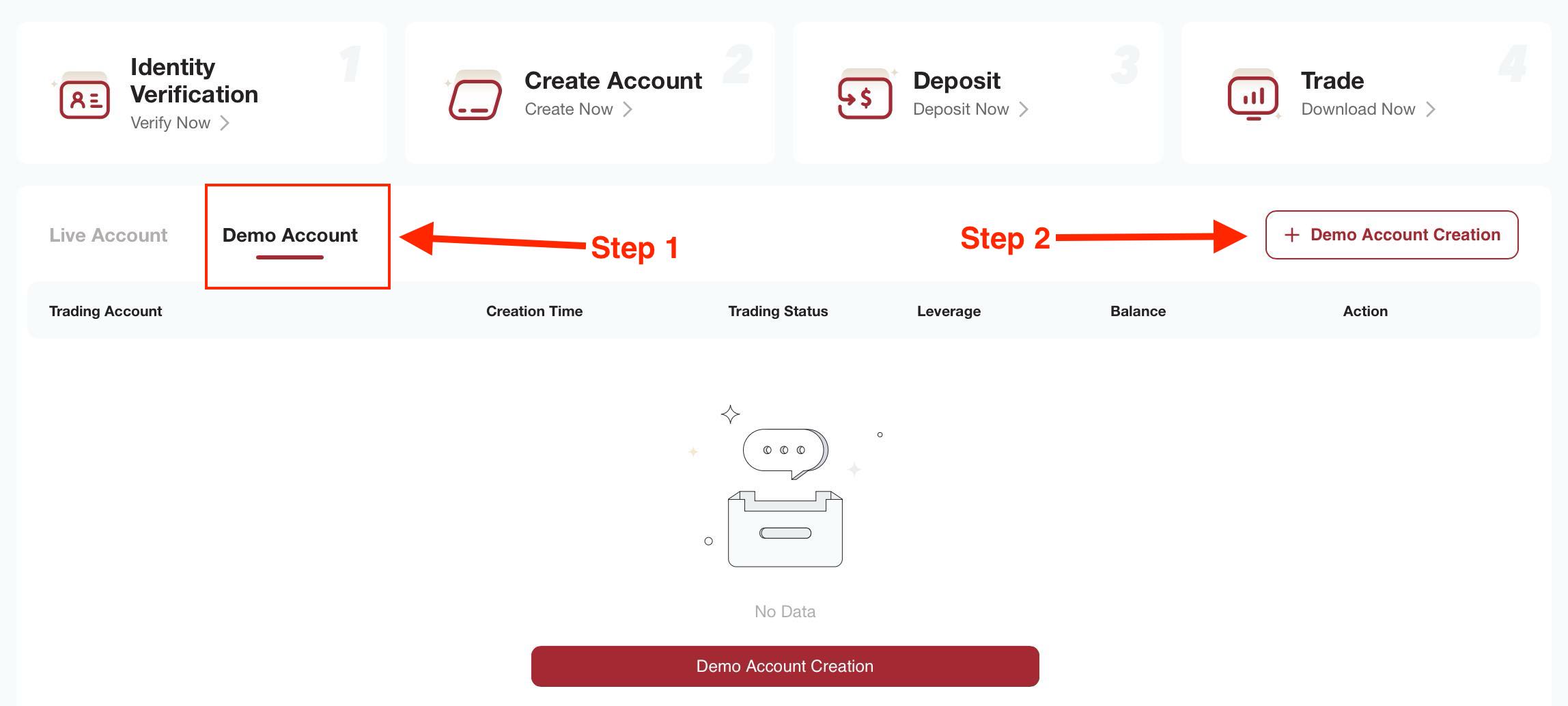
Choose your trading platform, account type, account currency, leverage and demo account balance, then set your own master password and investor password. 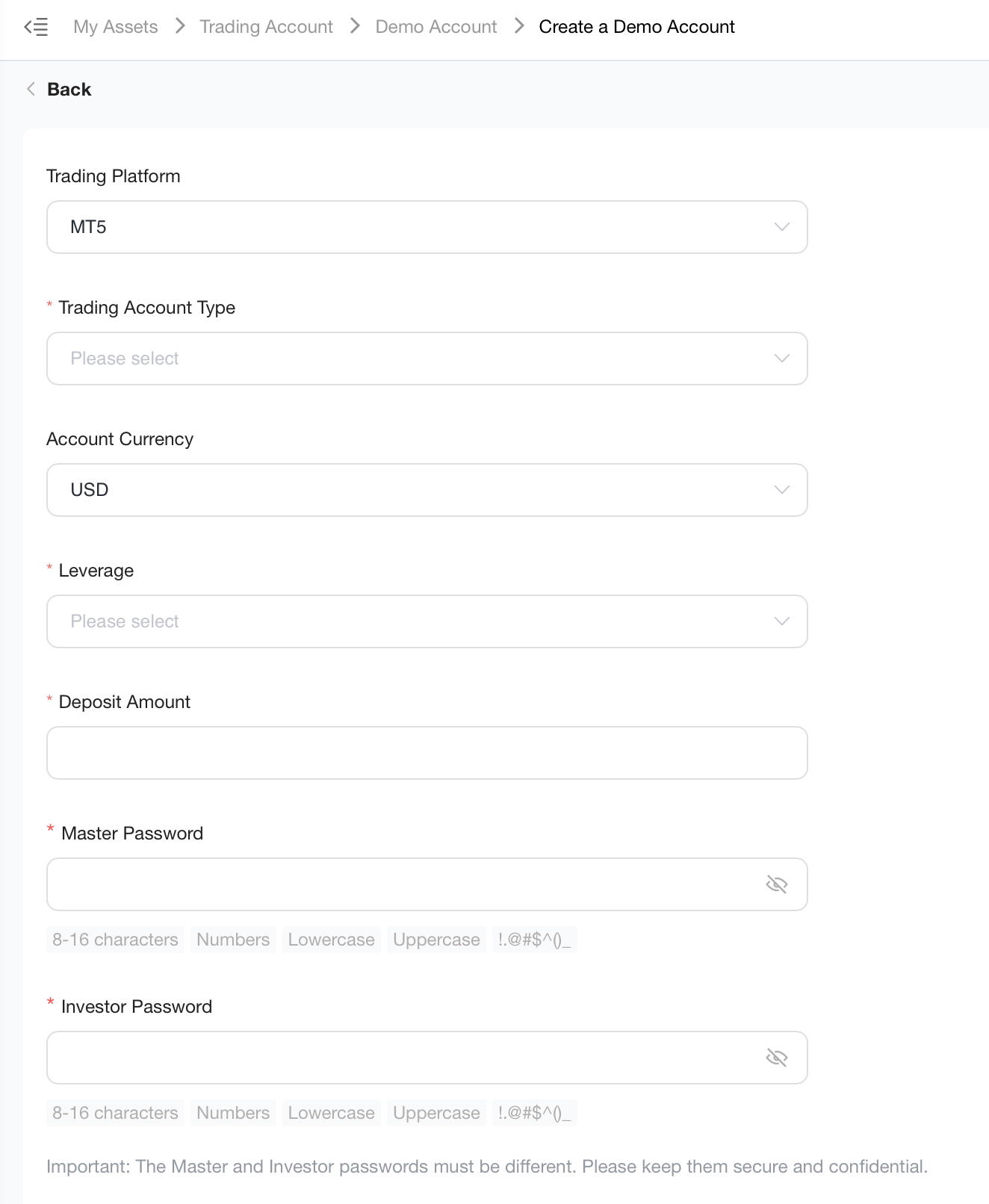
That last screen is why the portal route exists. You pick the account type your live trading will use, set your own passwords, and the same login later opens a live account without a second registration.
A demo costs nothing, asks for no deposit and needs no documents. Create your EBC account and build the demo from the portal if you want to set the account type, leverage and balance yourself.
Open MetaTrader 5. On a fresh install, the account window opens automatically. If it doesn’t, go to File, then Open an Account.
Search the broker list. Type EBC Financial Group (Cayman) Limited, select it, and click Next. 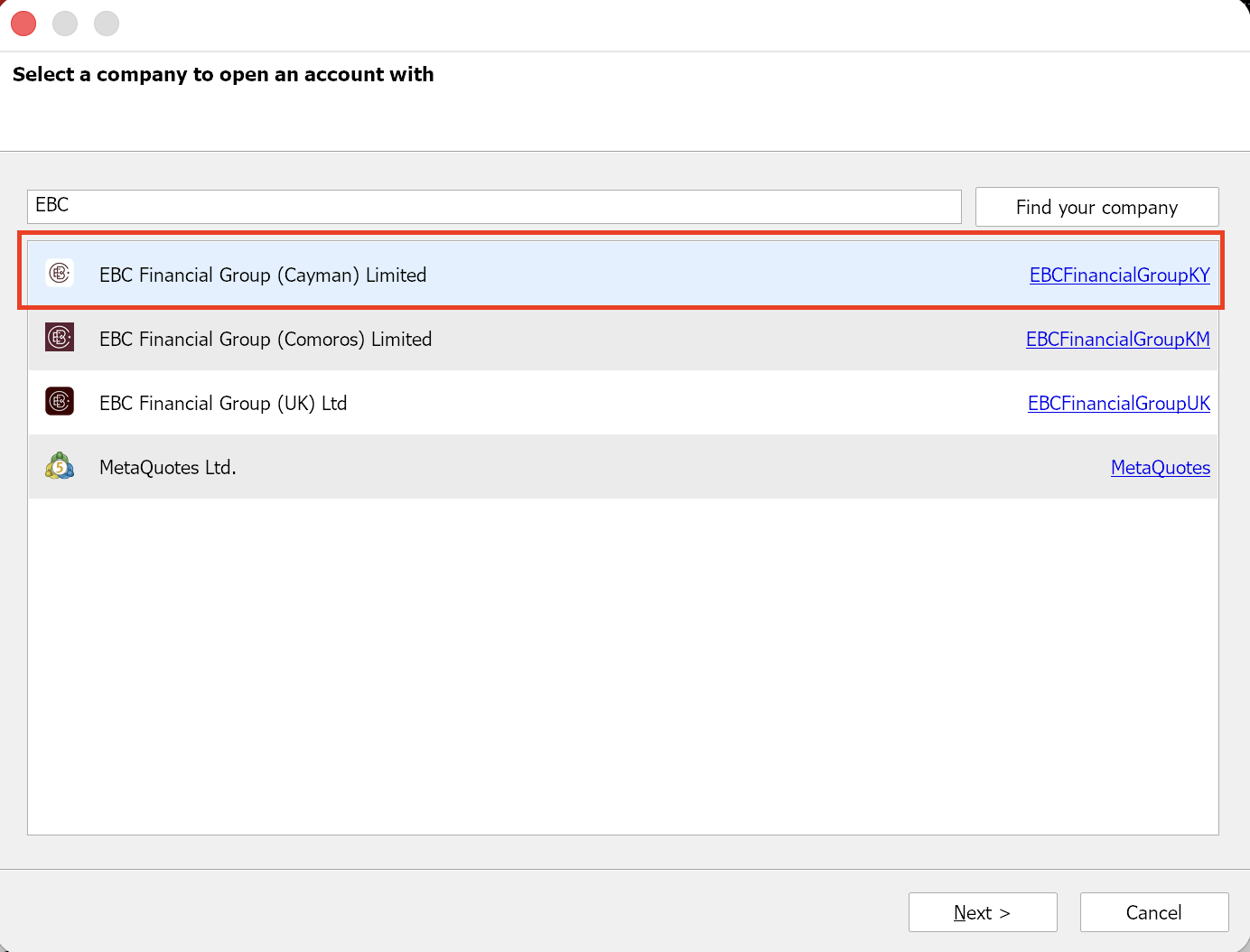
Choose the demo option rather than connecting an account you already hold. 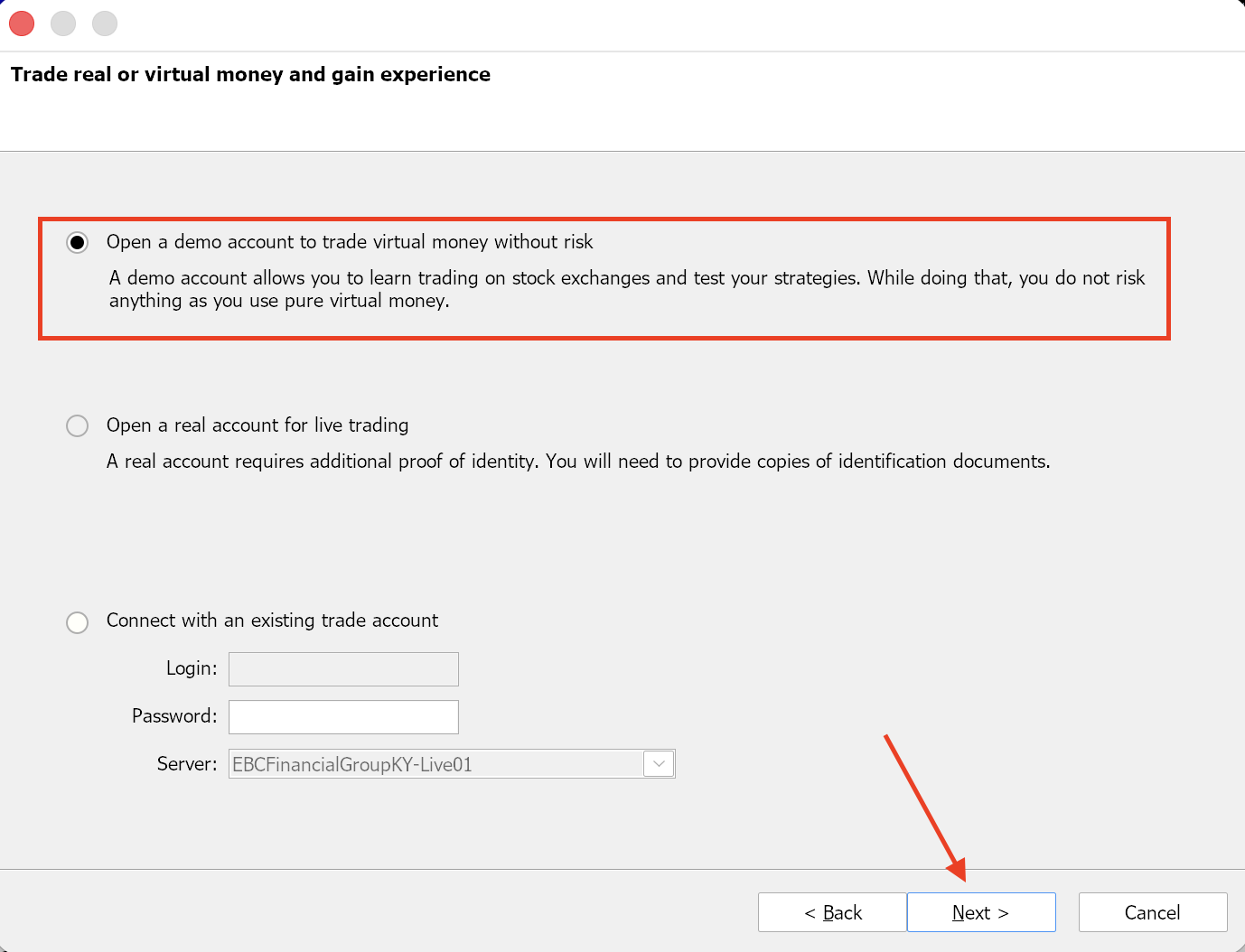
Enter your name, email and a phone number in international format.
Set the account parameters: hedging or netting, account type, deposit, currency and leverage.
Read the agreements, tick the box, click Next.
MT5 then shows the account registration screen. Copy everything on it before you close that window.
Open the MT5 app, tap the settings icon, then New Account. Type EBC into the search bar and pick the server whose name ends in Demo. Fill in the same fields and tap Register.
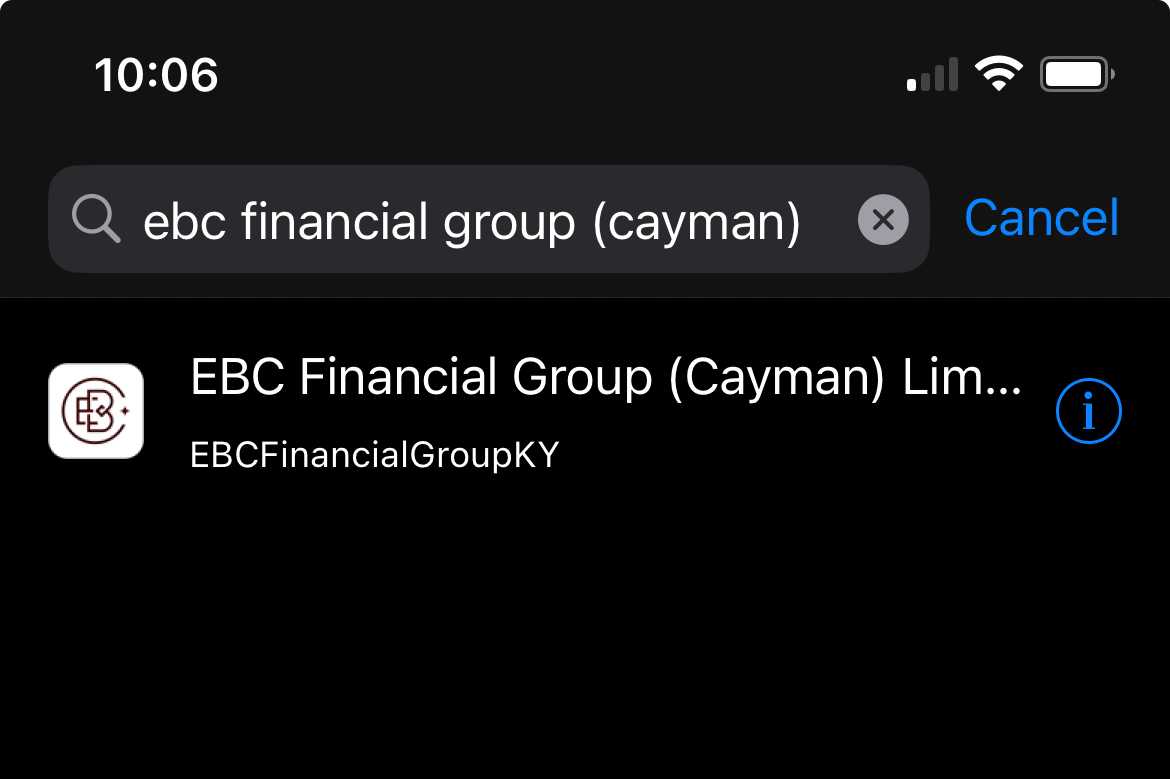
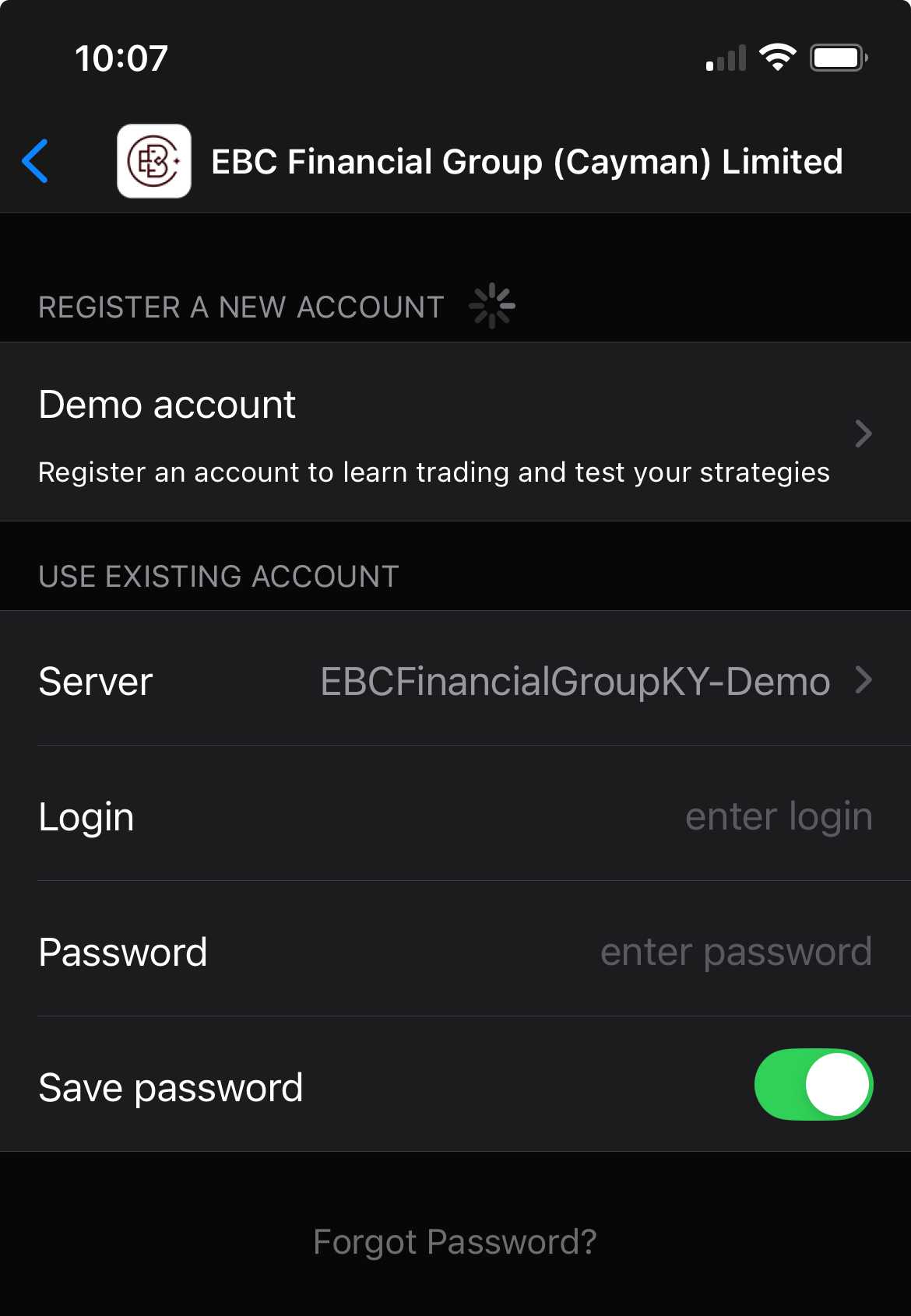
Two things trip people up on mobile. MetaQuotes states in its Android help that search results only appear after you type three characters, so a broker search that looks broken usually needs another letter. And the phone field will reject a landline; it wants a mobile number in international format.
When the confirmation screen appears, tap Copy to Clipboard and paste it somewhere you will find again.
The server is the machine at your broker that holds your account, and MT5 cannot find you without it. Get this field wrong, and the login fails. No useful error, no hint about which part was wrong.
EBC publishes its server names in the EBC Help Centre. The demo server name ends in KY-Demo. Live accounts sit on KY-Live01 and KY-Live02. EBC’s own documentation writes these with and without a space after “Group”, so match whatever string arrives in your account email rather than typing it from memory.
| Field | What It Is | Where to Find It |
|---|---|---|
| Login | Your account number | Registration screen and your account email |
| Password | Master password; places and closes trades | Set by you in the portal, or generated by MT5 |
| Investor password | Read-only; shows the account but cannot trade | Same screen as the master password |
| Server | Which broker server holds the account | Your account email; the demo one ends in KY-Demo |
The investor password is worth keeping. It opens the account in view-only mode, so you can show results to someone without handing over the ability to trade.
To log back in on desktop, go to File, then Login to Trade Account. On mobile, open the accounts screen and choose to log in to an existing account.
Set your demo to look like the account you will actually fund. A beginner practicing on a six-figure virtual balance learns position sizing that will not survive contact with a real deposit, and those habits transfer poorly.
Pick the same leverage you intend to use live. Higher leverage lets a smaller balance control a larger position, and it enlarges the loss on every trade that moves against you by the same multiple. Read how leverage and margin work before you set the field, not after.
MT5 also asks something MT4 never did: hedging or netting. Hedging lets you hold long and short positions in the same instrument at once. Netting merges them into a single position. You choose this when you create the account, and it changes which account types you can pick, so decide before you click.
Check the connection first. Numbers moving in the bottom right corner of the desktop terminal mean you have a live feed.
Then find your instrument. This is where new users stall, because MT5 ships with a filtered symbol list, and a beginner who cannot see gold or bitcoin in Market Watch reasonably concludes the demo doesn’t carry them. Right-click inside Market Watch, choose Symbols, expand the category, and add the instrument. Search XAUUSD for gold, XAGUSD for silver, BTCUSD for bitcoin. That is how gold and the other commodity CFDs appear in the list.
Right-click the instrument, choose New Order, set the smallest volume available, attach a stop-loss, and place it. A stop-loss is an order that closes the trade automatically once the loss reaches a level you set.
Open the Toolbox and watch balance, equity and used margin move. Then close it. One full cycle is the only real test of a working setup.
Your broker decides, not MetaTrader. Lifespan is a broker setting, which is why published figures disagree so wildly, running anywhere from two weeks to three months depending on whose page you land on. Ask your own broker and treat every number you read elsewhere as a fact about someone else’s account.
MetaQuotes does document what the platform does with an expired demo. The server returns an invalid account error, MT5 opens a fresh demo on the same server, and the dead one vanishes from the Navigator window because it can no longer retrieve its history.
Demo balances do not refill themselves. Two options, neither slow: open a new demo in the platform, or create another in the client portal. MetaQuotes places no limit on how many demo accounts one MetaTrader 5 installation can hold.
Write down what happened before you reset. A virtual balance destroyed in nine days is a result, and reading it now costs considerably less than reproducing it with real money later.
The software is identical for everyone. MetaQuotes builds MetaTrader and states plainly that it provides no brokerage services, so you’re not trusting the platform itself. You’re choosing the company running the server.
EBC Financial Group (UK) Limited is authorized and regulated by the Financial Conduct Authority under reference 927552, and the Cayman Islands Monetary Authority licenses EBC Financial Group (Cayman) Limited under reference 2038223. Both numbers are searchable on those regulators’ own public registers. That check takes a minute. Run it on any broker before you hand over a phone number, including this one.
A demo holds no money of yours, so safety here means something narrower and more useful: does this broker’s execution, spread behavior and platform stability look like something you would want to fund?
The bridge is short if you built the demo in the portal. Log in, add a live account, complete identity verification, and fund it. Deposits and withdrawals are handled in the client portal rather than in MT5, which surprises people who look for a deposit button on the platform and cannot find one.
Your MT5 login changes. So does the server, from the demo one to a live one, so expect fresh credentials rather than reusing what you already have.
Demo fills are usually instant and clean. Live ones are not. During a data release, an order may slip and spreads widen, and that difference lands in your results rather than in your strategy. Start smaller than your demo size suggests, because the first live trades are about handling the feeling.
No. Once you register with EBC you can create a demo account without completing identity verification, and you still choose the account type, leverage and starting balance. Verification applies when you open a live account, not before.
No. MetaQuotes builds the platform but provides no brokerage services, so MT5 needs a broker’s server to supply prices and process orders. It does run a MetaQuotes-Demo server for testing the software itself, which carries none of a real broker’s conditions. You can install MT5 with no account, though the charts stay empty until you connect.
Yes. One login number, password and server name work on desktop, mobile and web at the same time. MT5 also shows a QR code on the desktop registration screen that connects the mobile app without typing anything.
Repeat the account opening process. Demo and live accounts sit together in the Navigator window, and double-clicking switches between them. Keeping one demo for testing and one that mirrors your live settings is a common setup.
No demo makes anyone ready, because the missing ingredient is financial consequence. What it does prove is narrower and still worth having: that you can work the platform without hesitating, and that this broker’s conditions suit how you want to trade.
An MT5 demo goes from download to first trade in one sitting, once you know the broker list needs three characters, the server name matters as much as the password, and Market Watch hides most instruments until you ask. Those three details separate a working setup from an abandoned download.
Build the demo the way you would build the real thing. Match the account type and leverage you would actually use, and the practice transfers instead of teaching you habits that break on contact with a funded account.
If real money is anywhere in your plans, open an EBC account and create the demo from the portal. It stays free, and the live account is one screen away whenever you decide.