Published on: 2025-12-10
As EBC's proprietary account analysis system, EBC Turbo not only continuously tracks account performance but also highlights optimisation opportunities based on professional indicators. It is compatible with EA trading and serves as a valuable tool for traders of all types looking to improve profitability.
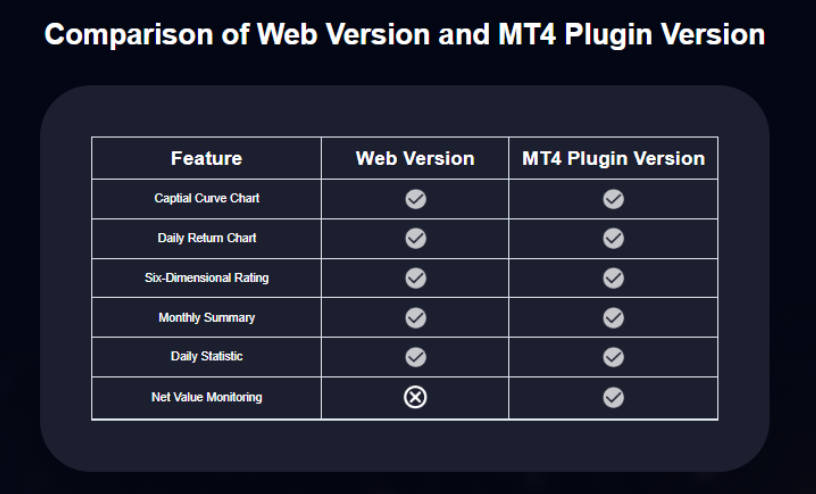
Web MT4 Version:
Provides core trading analysis features, requires no installation, and is easy to use.
Plugin Version:
Includes all features of the web version, with the additional "Equity Monitoring" feature (including equity charts). Requires installation of the MT4 plugin.
Users can choose the version that best suits their need for equity monitoring.
To use the web version of EBC Turbo, you first need to download the MT4 standard trading statement. The trading statement records all your trade details and serves as the foundation for analysis.
1. Open the MT4 client and click "Terminal" under the "View" menu at the top.

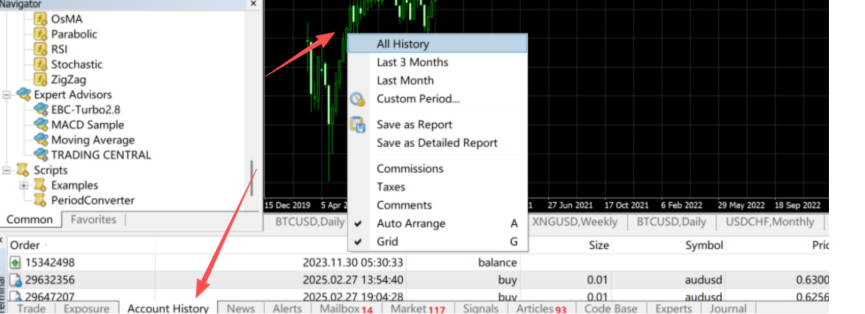
2. In the Terminal window, locate the "Account History" section at the bottom left. Right-click "Account History" and select "All History".
3. Right-click again and choose "Save as Detailed Account Statement".
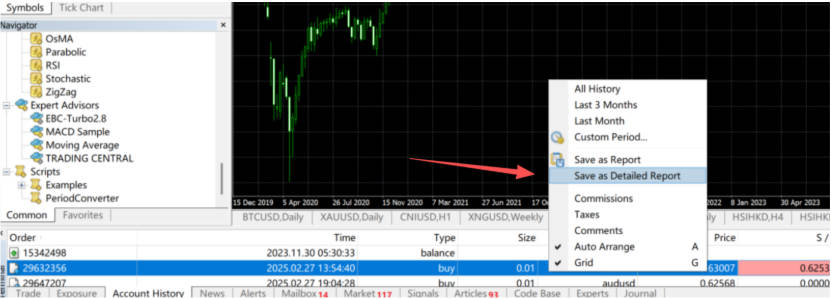
4. Important: The file must be saved in .htm format (an incorrect extension will prevent analysis).
1. Open the official EBC Turbo website (https://ebcturbo.com) and click the "Start Analysis" button on the homepage.
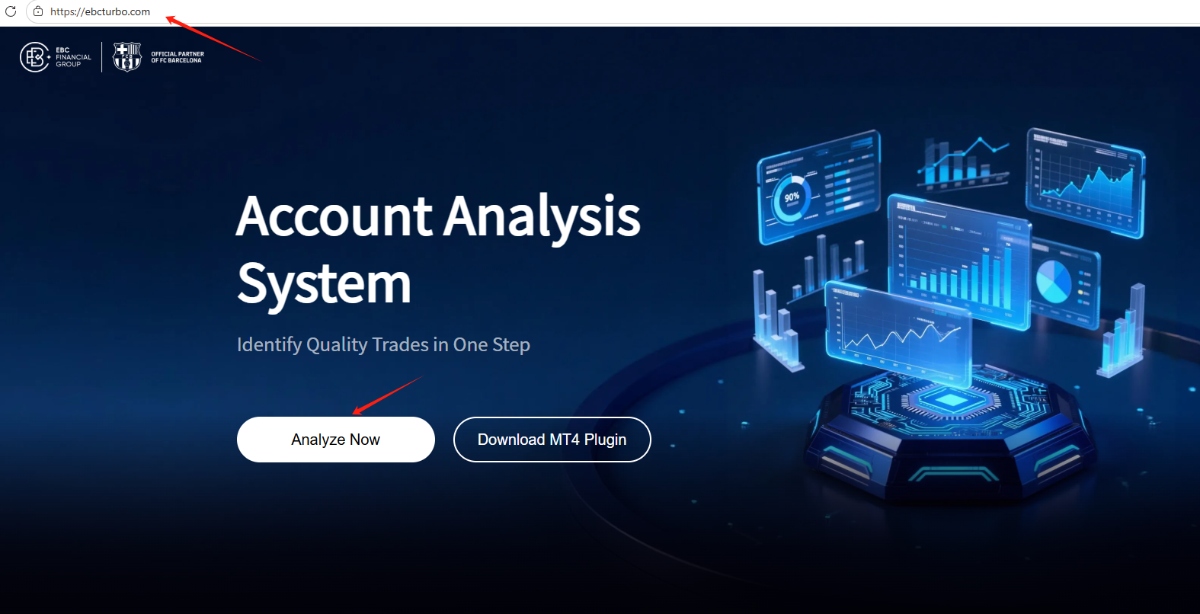
2. Click "Upload File" and select the .htm statement downloaded in Step 1.
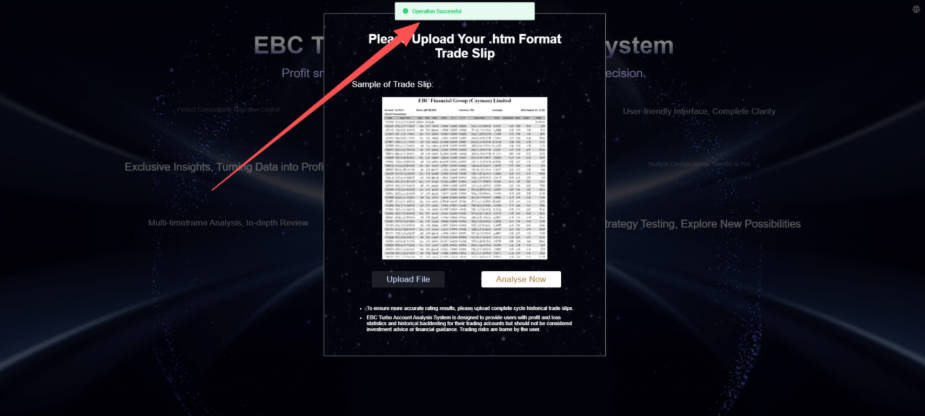
3. Once you see the "Operation Successful" message, click "Analyse Now" to automatically view your account analysis results.
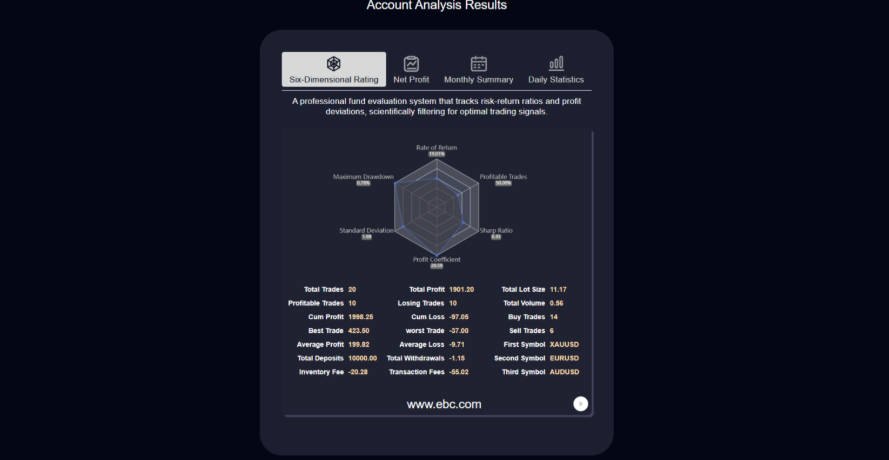
If you see "Operation Successful" but nothing happens when clicking "Analyse Now":
Reason 1:
Incorrect file format (not .htm) → Re-download the statement following Step 1. ensuring the extension is .htm.
Reason 2:
Statement is not in standard MT4 format → Uninstall any third-party modification tools and re-download the statement directly from the MT4 client.
Open the official EBC Turbo website.
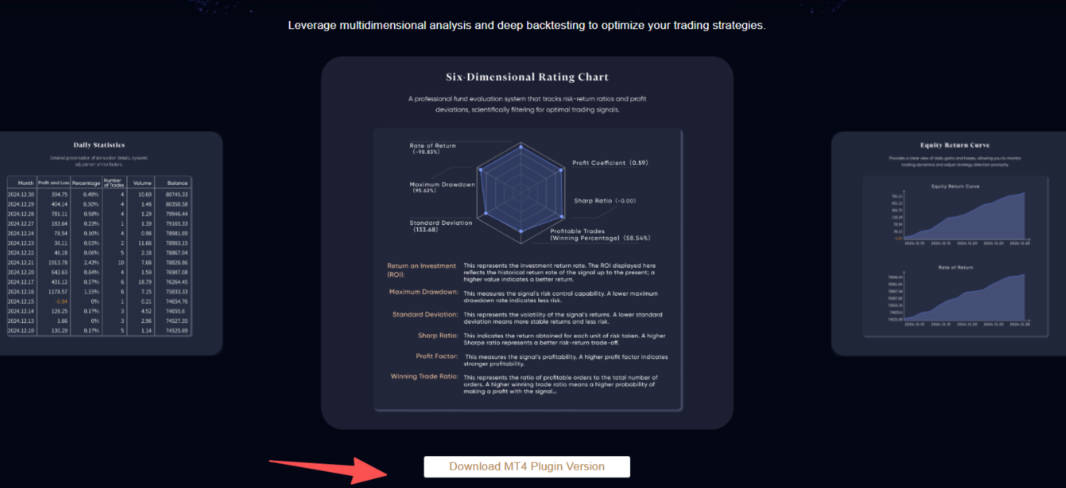
Click "Download MT4 Plugin Version" on the homepage and save the plugin file.
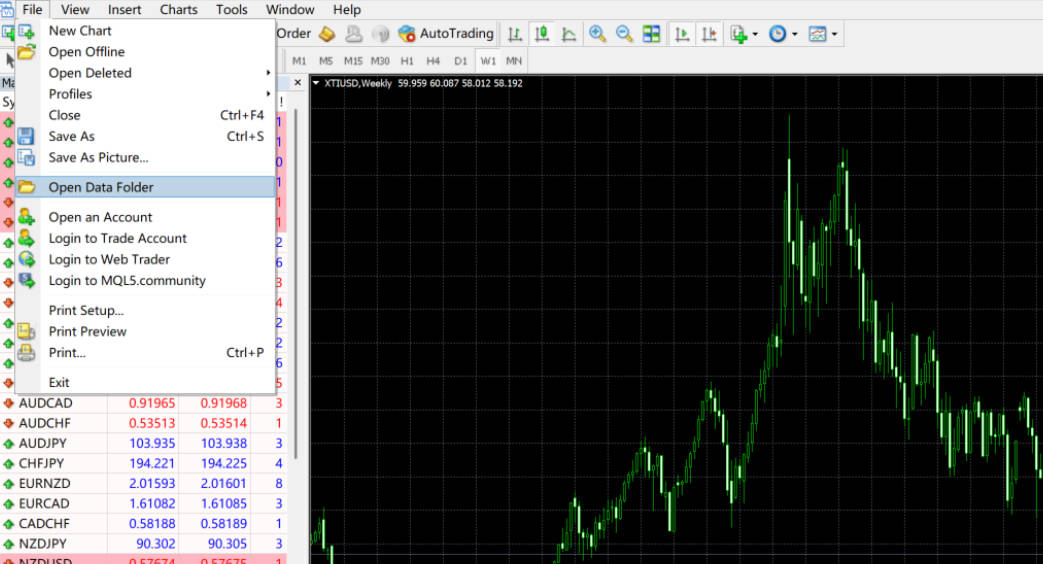
1. Open your MT4 client, click "File" in the top menu, then select "Open Data Folder" (this will open the local file folder).
2. Locate the "MQL4" directory, double-click to open, then find the "Experts" folder. Place the downloaded EBC Turbo plugin file directly into this folder.
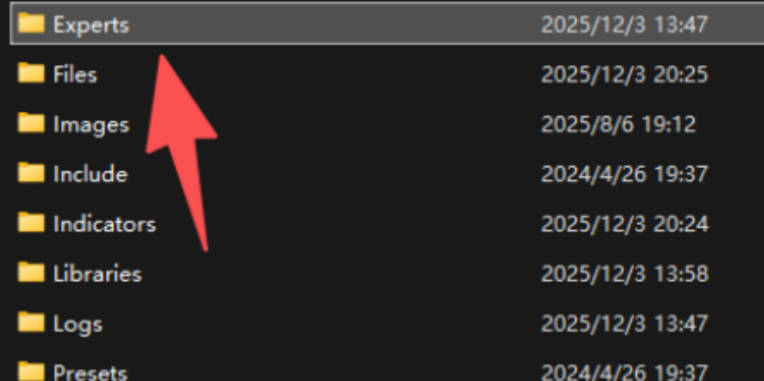
3. Restart the MT4 client (the plugin will only take effect after restarting).
1. After restarting MT4. click "View → Navigator". In the terminal window at the bottom left, find "Account History", right-click and select "All History" (same as Step 1–4 for the web version), then return to the Navigator window.

2. Expand the "EA Trading" directory, locate the EBC Turbo plugin, and double-click to launch.

3. When the settings window appears, switch to the "Common" tab, tick "Allow Live Trading" and "Allow DLL Imports", then switch to the "About" tab and click "OK" to save the settings.
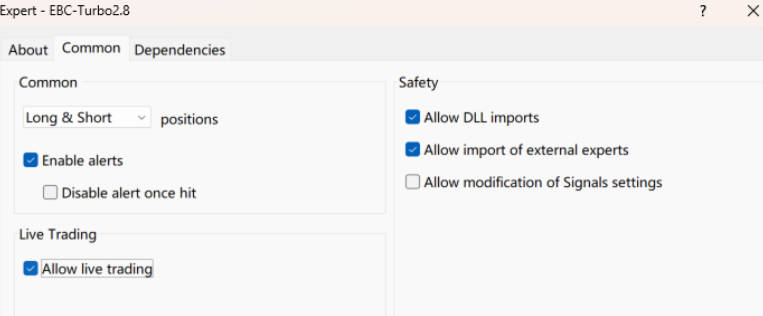
4. Return to the MT4 market screen and the EBC Turbo plugin will automatically appear.
Compared with the web version, the plugin additionally provides an equity chart.
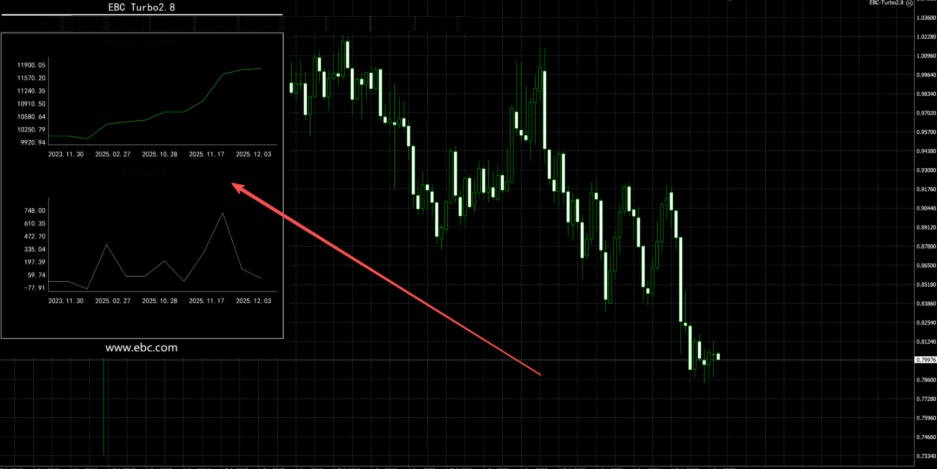
These are the detailed installation and usage instructions, representing the first step to enabling professional account analysis. In the next guide, we will explain how to interpret the analysis indicators.
Disclaimer: This material is for general information purposes only and is not intended as (and should not be considered to be) financial, investment or other advice on which reliance should be placed. No opinion given in the material constitutes a recommendation by EBC or the author that any particular investment, security, transaction or investment strategy is suitable for any specific person.